Struggling to track every campaign or user action on your Shopify store? You are not alone. As analytics become more complex, missing critical data can cost you real growth. That is why mastering google tag manager for shopify matters now more than ever.
This guide will cut through the confusion and show you, step by step, how to set up GTM for Shopify the right way in 2026. You will learn the fundamentals, explore installation options, unlock advanced tracking, and get expert troubleshooting tips.
Ready to centralize your tags, save time, and make smarter business decisions? Dive in and future-proof your Shopify analytics with our comprehensive guide.
Understanding Google Tag Manager and Its Benefits for Shopify
Struggling to keep up with all your marketing tags and analytics scripts? Google tag manager for shopify changes the game by letting you manage everything in one place, without touching code. Let's break down what makes this tool essential for modern Shopify stores.
What Is Google Tag Manager?
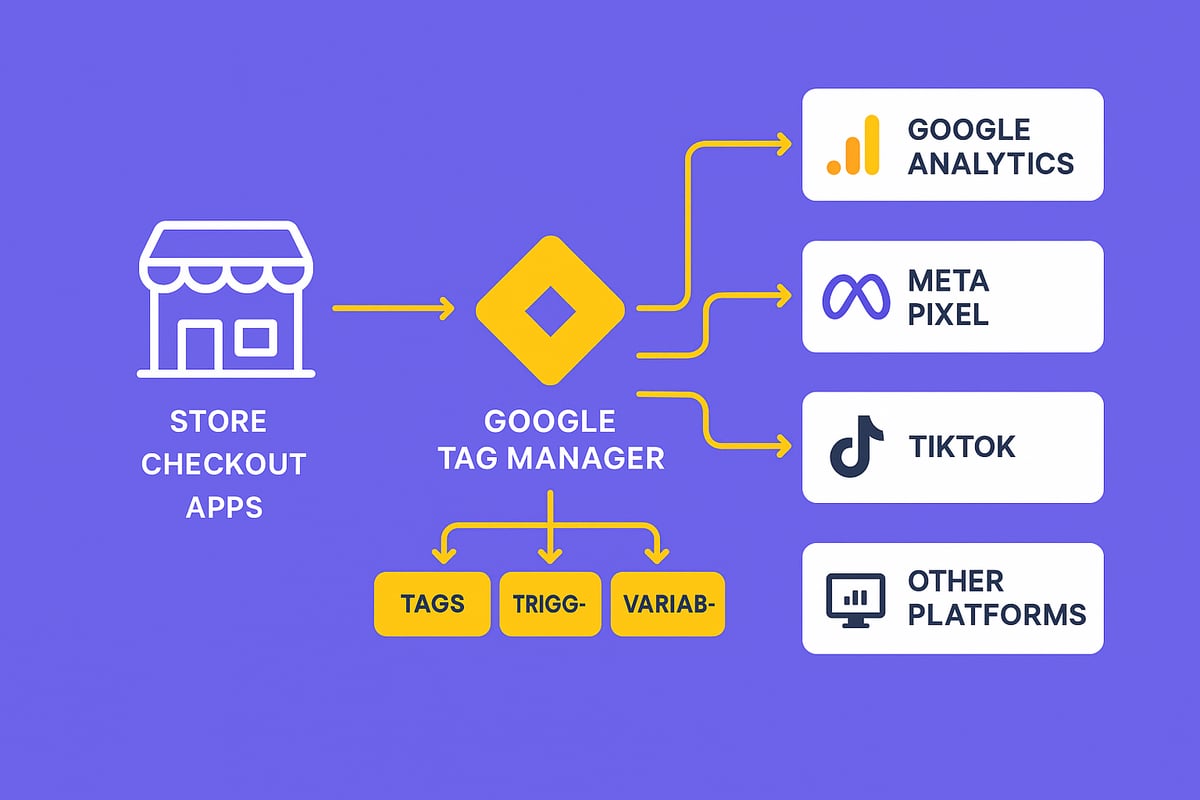
Google tag manager for shopify is a free tag management system from Google, built to simplify tracking and analytics. Instead of editing code every time you want to add or update a marketing tag, you use GTM's dashboard to deploy and manage tags.
Key components include:
- Tags: Snippets of code for analytics or marketing
- Triggers: Rules for when tags fire
- Variables: Dynamic data like product IDs or prices
For example, you can use GTM to control Google Analytics, Ads, Meta Pixel, and more from a single interface. Over 70 percent of top ecommerce sites use a tag management solution for flexibility and speed.
In the Shopify context, you gain robust tracking without always needing a developer. For more technical integration details, see Shopify's Google Tag Manager Guide.
Why Use GTM on Shopify in 2026?
As Shopify and third-party tools evolve, having google tag manager for shopify means unified tag management across all your marketing and analytics platforms. You can quickly adapt to changes, update tags for new channels, or remove old ones, all without editing theme files.
Centralized control also supports privacy compliance, like GDPR and CCPA, by letting you manage consent scripts in one place. GTM is a future-proof solution, ready for whatever changes come to Shopify or Google.
For example, if you launch a campaign on a new channel, you can add or update tags in minutes, not hours, streamlining your workflow.
Key Benefits for Store Owners
Adopting google tag manager for shopify offers major advantages for store owners:
- Reduces risk of duplicate or missing tags
- Improves site speed by controlling when tags load
- Simplifies troubleshooting with a single dashboard
- Enables advanced tracking like enhanced ecommerce and funnel analysis
- Supports scaling as your store and campaigns grow
By consolidating tag management, you minimize errors and keep your site performing at its best, even as your needs change.
Common Use Cases and Real-World Examples
With google tag manager for shopify, stores can track key actions like purchases, add-to-carts, and product views with precision. Integration options include Google Ads, Meta Pixel, and third-party analytics, all managed from GTM.
According to PageFly data, stores using GTM report a 150 percent increase in visitor tracking accuracy. Brands such as Keychron have doubled their conversion rates after optimizing tags through GTM.
Custom event tracking is another standout feature. Want to monitor pop-up interactions, coupon usage, or special promotions? GTM makes it easy, helping you make smarter marketing decisions based on real user behavior.
Step-by-Step: Installing Google Tag Manager on Shopify
Setting up google tag manager for shopify is a powerful way to gain full visibility over your store’s data. Whether you’re a first-time user or leveling up your analytics, following the right steps ensures you capture every key event. Let’s break down each installation method, so you can choose the best fit for your business.
Preparation: Prerequisites and Planning
Before you install google tag manager for shopify, start by laying a strong foundation. First, create a GTM account and a dedicated container for your Shopify store. This container is where you’ll manage all your tags, triggers, and variables.
Next, gather all tracking IDs you plan to use. These might include Google Analytics, Google Ads, Meta Pixel, or others. Having these on hand streamlines your setup and helps avoid missing crucial steps.
Always back up your Shopify theme files before making any changes. This precaution saves you from headaches if you need to revert. Audit your current tags to make sure you don’t end up with duplicates, which can skew your analytics.
Finally, identify the key actions and events you want to track, such as purchases, sign-ups, or specific product interactions. This planning stage is vital for anyone installing google tag manager for shopify, ensuring your data is clean and actionable.
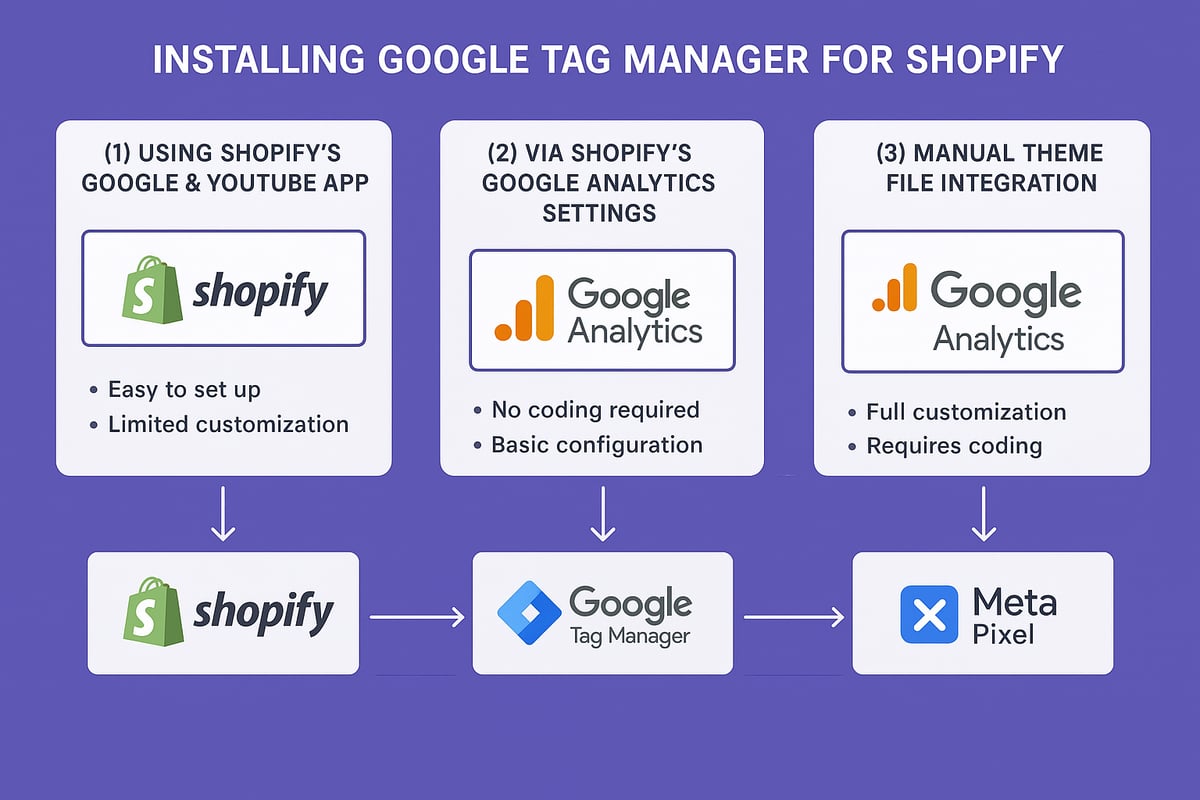
Method 1: Using Shopify’s Google & YouTube App
The easiest way to integrate google tag manager for shopify is through Shopify’s Google & YouTube App. Head to your Shopify Admin, select Apps, and install the Google & YouTube app. Connect your Google account, and the app will handle most of the heavy lifting for you.
With this method, Google Analytics and Google Ads tags are automatically managed. This means less manual work and fewer chances for errors. It’s perfect for beginners or anyone who prefers a streamlined process.
However, this approach mainly supports Google products. If you want to track other platforms like Meta or TikTok, you’ll need to supplement with other methods. For those migrating from older tag setups, this Shopify's Google & YouTube App Migration Guide provides detailed steps to ensure your tracking remains accurate.
Method 2: Via Shopify’s Google Analytics Settings
If you’re already using Google Analytics 4, Shopify’s built-in analytics settings offer a seamless way to connect google tag manager for shopify. Navigate to Shopify Admin, go to Online Store, then Preferences, and find the Google Analytics section.
Here, link your GA4 property. You can then integrate GTM using the Google tag option. This ensures that analytics data flows smoothly between Shopify and Google, giving you reliable insights.
This method is especially useful for stores that have already invested in GA4 and want to keep everything centralized. It also reduces the risk of duplicate code, since Shopify manages the connection natively.
Method 3: Manual Installation via Shopify Theme Files
For full control over google tag manager for shopify, manual installation is the way to go. Access your Shopify Admin, head to Online Store, then Themes, and choose Edit Code. Open your theme.liquid file.
Paste your GTM container code right after the <head> tag:
<!-- Google Tag Manager -->
<script>
(function(w,d,s,l,i){w[l]=w[l]||[];w[l].push({'gtm.start':
new Date().getTime(),event:'gtm.js'});var f=d.getElementsByTagName(s)[0],
j=d.createElement(s),dl=l!='dataLayer'?'&l='+l:'';j.async=true;j.src=
'https://www.googletagmanager.com/gtm.js?id='+i+dl;f.parentNode.insertBefore(j,f);
})(window,document,'script','dataLayer','GTM-XXXXXXX');
</script>
<!-- End Google Tag Manager -->
Double-check for existing tag scripts to avoid duplication. Save and publish your changes. This method supports all tag types, including Meta Pixel and TikTok. Remember, theme updates may overwrite your code, so always document your setup for future reference.
Here’s a quick comparison of the three methods:
| Method | Ease of Use | Supported Tags | Best For |
|---|---|---|---|
| Google & YouTube App | High | Google only | Beginners, Google users |
| Google Analytics Settings | Medium | Google Analytics | GA4 users |
| Manual Theme File Installation | Advanced | All platforms | Full control, advanced |
Verifying Your GTM Installation
After setting up google tag manager for shopify, always verify your installation. Start by enabling GTM’s Preview Mode to check if tags are firing as expected. The Google Tag Assistant Chrome extension is another handy tool for real-time verification.
Test your Shopify store’s order confirmation page to ensure conversion tags trigger correctly. If you notice issues, common culprits are misplaced code or script conflicts. Careful testing helps prevent data errors, which can impact your marketing and analytics.
Regular verification is essential. Up to 20 percent of stores encounter duplicate tracking due to setup mistakes, but thorough testing protects your data integrity and keeps your analytics reliable.
Advanced Tracking with Google Tag Manager on Shopify
Unlocking advanced tracking with google tag manager for shopify takes your analytics from basic to world-class. Once you have the foundation, you can set up conversion tracking, integrate third-party tags, track custom events, analyze customer journeys, and ensure full compliance with privacy laws. These strategies help you optimize every marketing campaign and user touchpoint with confidence.
Setting Up Conversion Tracking
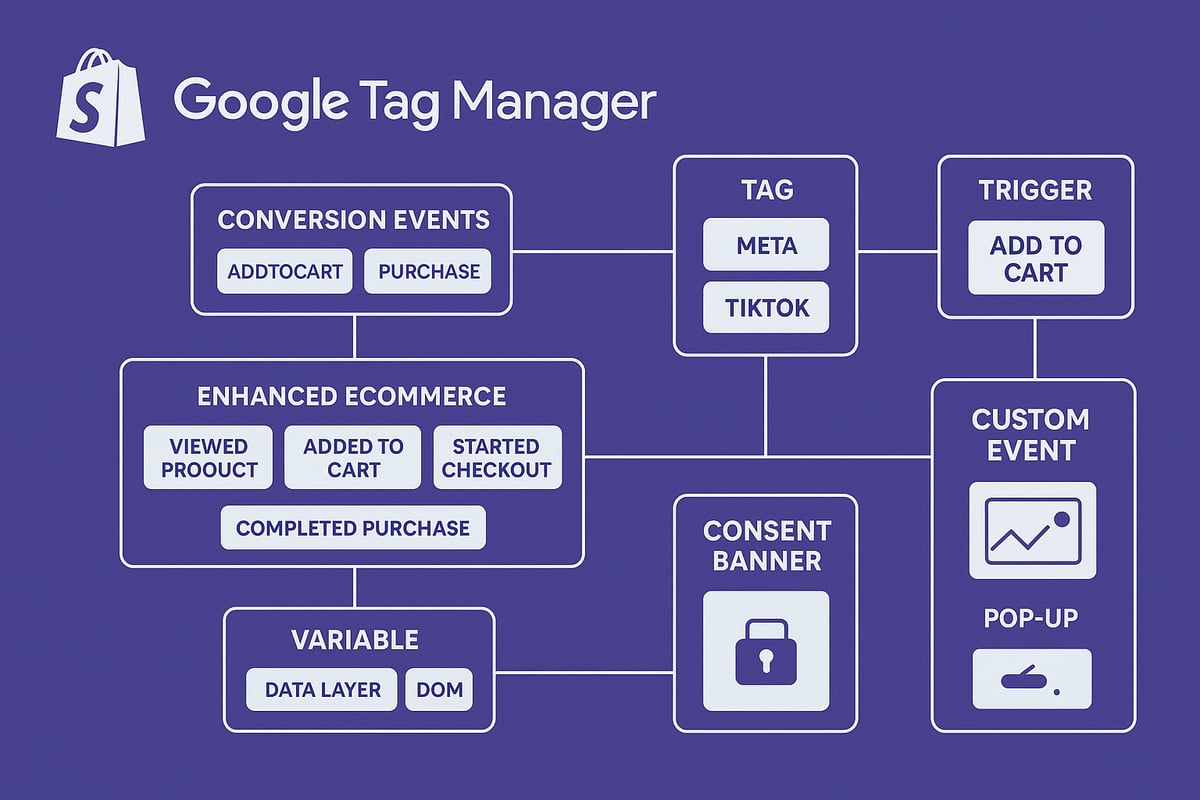
Conversion tracking is the backbone of any data-driven Shopify store. With google tag manager for shopify, you can define and capture key conversion events like purchases, lead sign-ups, or newsletter subscriptions. Start by identifying which actions matter most for your business.
Within GTM, create tags for platforms such as Google Ads or Analytics. Use triggers that fire these tags on Shopify’s thank you page or specific URLs tied to successful transactions. This ensures you only count conversions when they really happen. For example, after implementing precise purchase tracking, many stores see a 2X improvement in conversion rates.
Automate your reporting by sending conversion data to your ad and analytics dashboards. This makes it easy to analyze ROI and adjust campaigns on the fly. With google tag manager for shopify, your conversion data remains accurate and actionable, letting you make smarter decisions at scale.
Installing and Configuring Third-Party Tags
Modern Shopify marketing requires more than just Google products. With google tag manager for shopify, you can add Meta Pixel, TikTok, Pinterest, or LinkedIn Insight tags directly through GTM. Use Custom HTML tags for platforms not natively supported, or leverage GTM’s built-in templates for popular ad networks.
Cross-channel attribution becomes straightforward, allowing you to track user journeys across multiple platforms. For example, integrating multiple pixels through GTM can lead to a 250% increase in tracked conversions for your campaigns.
Monitor tag performance in each ad manager dashboard. Regularly audit your tags to ensure you are not missing out on valuable conversion data. The flexibility of google tag manager for shopify means you can support new marketing channels as they emerge, all without editing your Shopify theme files.
Custom Event Tracking for Enhanced Analytics
Custom event tracking with google tag manager for shopify lets you go beyond standard analytics. Track unique user actions such as add-to-cart clicks, product views, coupon redemptions, or pop-up interactions. This level of detail helps you optimize every touchpoint and campaign.
Use Shopify’s dataLayer or custom JavaScript to push relevant event data into GTM. For example, track when users interact with a promotional pop-up, then segment those users for targeted remarketing. Capture details like product IDs, values, and categories with GTM variables for richer insights.
With these custom events, you can build audiences based on real behavior, not just page views. This empowers you to retarget users more effectively and refine your marketing funnels for higher ROI.
Enhanced eCommerce and Funnel Analysis
Enhanced eCommerce tracking in google tag manager for shopify reveals the full customer journey. Enable Enhanced eCommerce in Google Analytics through GTM to monitor product impressions, add-to-cart actions, checkout steps, and cart abandonment.
Visualize the funnel from landing page to purchase. Identify where users drop off and which products drive the most engagement. Stores that implement funnel analytics with GTM have seen session durations grow by over 300 percent, indicating stronger user engagement.
Use these insights to fix weak points in your checkout process and boost conversions. By tracking every step, you can continually refine your store’s performance and marketing effectiveness.
Privacy, Consent, and Compliance Best Practices
Privacy compliance is critical in 2026. Use google tag manager for shopify to manage consent banners and cookie scripts, ensuring you meet GDPR, CCPA, and Shopify’s own privacy requirements. Clear consent mechanisms often lead to lower bounce rates and higher user trust.
Regularly audit your tags to make sure you are not collecting unnecessary data. Document your data collection practices for transparency. For enhanced privacy and performance, consider following a Server-Side GTM Implementation for Shopify, which strengthens compliance and data reliability.
By handling consent and privacy through GTM, you future-proof your store and maintain trust with your customers. Stay proactive, and your analytics will remain both compliant and powerful.
Testing, Debugging, and Maintaining Your GTM Setup
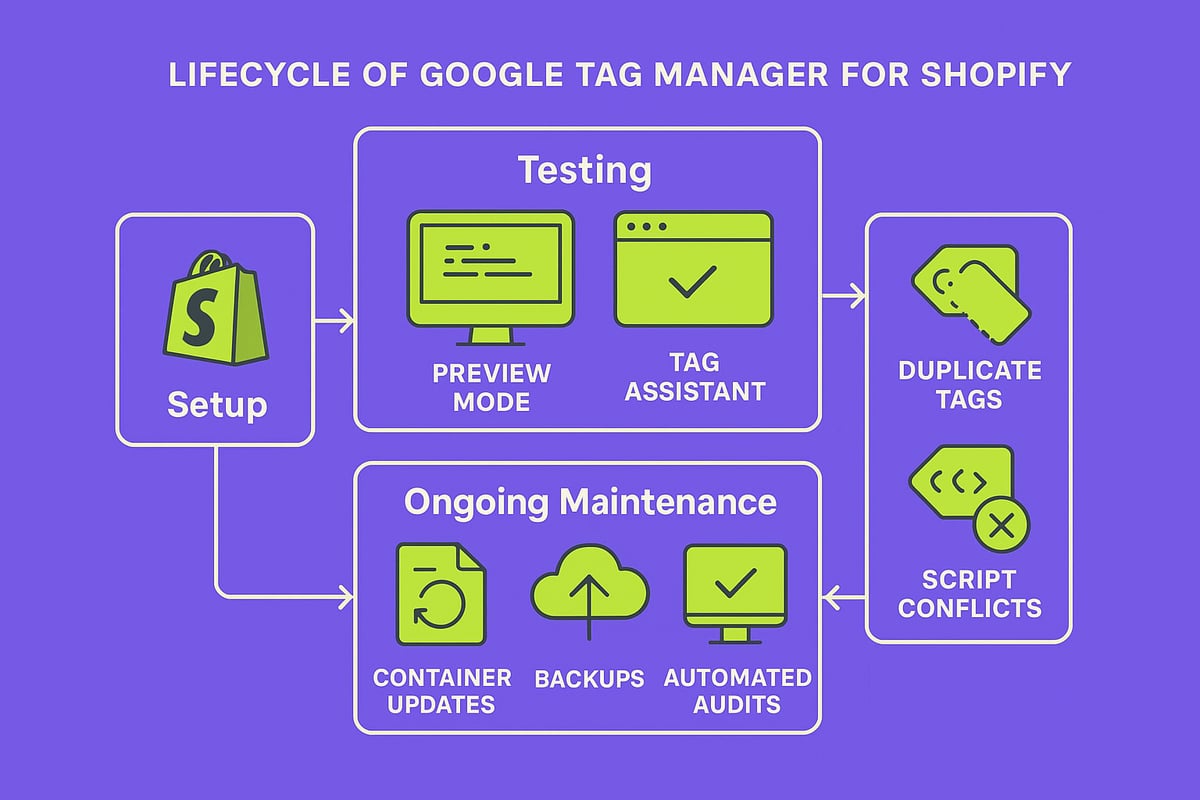
Implementing google tag manager for shopify is only the first step. Ongoing testing, debugging, and maintenance ensure your analytics remain accurate as your store evolves. Let’s break down best practices to keep your GTM setup running smoothly.
Using GTM Preview and Debug Tools
Start with GTM’s Preview Mode to see which tags fire on each page of your Shopify store. This is essential for anyone using google tag manager for shopify, as it helps spot misfiring or duplicate tags before they skew your analytics.
- Activate Preview Mode in your GTM dashboard and navigate your store as a shopper.
- Use the Google Tag Assistant Chrome extension for a second layer of verification.
- Document each test, noting which tags fire on landing, product, cart, and checkout pages.
By keeping a log of your test results, you build a reference for future updates, ensuring ongoing accuracy for your tracking setup.
Shopify-Specific Testing Scenarios
Shopify’s unique checkout and order flow means you must test google tag manager for shopify across all key customer touchpoints, not just the homepage. Always simulate a full purchase, from landing to order confirmation, to validate conversion tracking.
- Test tags on the checkout and thank you pages.
- Check if tags persist after Shopify theme updates.
- Cross-verify GTM data with Shopify’s built-in analytics.
This approach prevents lost data during high-traffic events, like Black Friday, and ensures your analytics remain trustworthy as your store changes.
Troubleshooting Common Issues
Even with careful setup, issues can arise. Common problems in google tag manager for shopify include duplicate tags, scripts not firing due to theme conflicts, or missing Shopify variables in the dataLayer.
- Audit your theme files for redundant code.
- Update triggers and use custom events where necessary.
- Regularly review GTM’s debug console for script errors.
For real-world troubleshooting stories and solutions, check the Shopify Community Discussion on GTM Use Cases. Learning from peer experiences can help you avoid common pitfalls and optimize your GTM setup.
Maintaining and Updating GTM on Shopify
Routine maintenance keeps your google tag manager for shopify setup lean and effective. Schedule regular audits to remove outdated tags and ensure all triggers align with your latest marketing tools.
- Backup your GTM container and Shopify theme before making changes.
- Update GTM configurations when you add or remove third-party integrations.
- Monitor Shopify and GTM release notes for critical updates.
Proactive maintenance supports consistent data collection and prepares your store for growth.
Advanced Debugging and Automation Tips
Take google tag manager for shopify to the next level with advanced debugging and automation. Use GTM’s version history to revert accidental changes and set up automated audits with GTM APIs.
- Schedule periodic QA checks for all critical tags.
- Document custom triggers and variables for team reference.
- Implement scripts that alert you to tag errors or anomalies.
Enterprise stores often automate these processes, ensuring tag health and data accuracy as their operations scale.
Optimizing Shopify Analytics and Marketing with GTM
Unlocking the full power of google tag manager for shopify means transforming raw data into actionable business growth. With the right strategies, you can fine tune your analytics, streamline marketing, and stay competitive in a rapidly evolving eCommerce landscape.
Leveraging Data for Smarter Marketing Decisions
Harnessing google tag manager for shopify enables you to segment audiences and personalize campaigns with precision. By attributing sales to specific channels, you can identify what truly drives revenue and double down on winning strategies.
For example, a 150% increase in tracked page views often leads to better ad targeting and more efficient spend. Integrate GTM data with Google Data Studio for custom dashboards that reveal patterns and opportunities.
Want to go deeper? Explore Behavioral economics in B2B marketing to uncover how advanced analytics can shape consumer behavior and improve campaign performance.
Use these insights to optimize inventory, promotions, and content, ensuring every marketing decision is data driven.
Scaling Your Store’s Tag Management
As your Shopify store grows, so does the complexity of your tag ecosystem. Google tag manager for shopify simplifies this by letting you organize tags using folders and clear naming conventions.
Empower your team by assigning user permissions, so campaigns can launch twice as fast. Planning for international growth? GTM supports multi-language and multi-currency tags, ensuring smooth expansion.
Keep an eye on tag load times to maintain site speed and a seamless customer experience.
Future-Proofing Your Shopify Tracking Stack
Shopify and Google are always evolving, and so should your tracking setup. Google tag manager for shopify makes it easier to migrate to server-side tagging and adapt to new privacy regulations.
Early adopters of server-side GTM report improved data reliability. Regularly test new features like consent mode and enhanced measurement to stay ahead.
Document your processes so onboarding new team members is quick and knowledge is never lost.
Integrating GTM with Other Shopify Apps and Tools
Connecting google tag manager for shopify with review, loyalty, and pop-up apps unlocks unified analytics across your entire stack. For example, integrating with builders such as PageFly allows you to track custom events and measure engagement on landing pages.
Enable cross-app tracking to gain holistic insights into customer journeys. GTM can even trigger marketing automations in real time based on user behavior.
Stay alert for app updates to ensure ongoing compatibility with your tag setup.
Advanced Tagging Strategies for 2026
The future of google tag manager for shopify is dynamic, personalized, and data rich. Implement dynamic remarketing and advanced audience targeting for higher ROI.
Track offline conversions and connect in-store visits to online activity for a true omnichannel approach. Enterprise brands are experimenting with AI powered tag triggers to optimize campaigns in real time.
Regularly review and retire outdated tags to keep your setup lean and effective.
Measuring Success: Key Metrics and KPIs
Mastering google tag manager for shopify means tracking the metrics that matter. Monitor conversion rates, average order value, and customer lifetime value to measure growth.
Keep an eye on tag firing rates and error logs to ensure data accuracy. For more on performance tracking, read Measuring SDR success with AI tools for practical tips on analytics.
Set up alerts for anomalies, and use insights to refine both your marketing and product strategies.